Migrating Neon to PlanetScale with zero downtime
Migrate your database from Neon to PlanetScale with absolutely zero downtime.
Motivation
With the recent announcement of PlanetScale for Postgres being GA (general availability), and their even more recent announcement of more affordable single-node configurations, PlanetScale has become a much more appealing solution for smaller projects, which do not require a full HA (high availability) cluster.
Assumptions
This is kind of a "hand-holding" type of guide. I'll assume:
- You've never used PlanetScale and have never migrated a database
- You want to migrate every table from your old database
- You've never used Postgres CLI commands
- BUT you've downloaded the Postgres CLI tools in some way
- you're using an OS with a UNIX-like terminal
- You understand how shell environment variables work
The workload
Full disclosure: I'll be using the database structure of a simple URL shortener app I hacked together for my personal use in this guide. Here's its ERD:
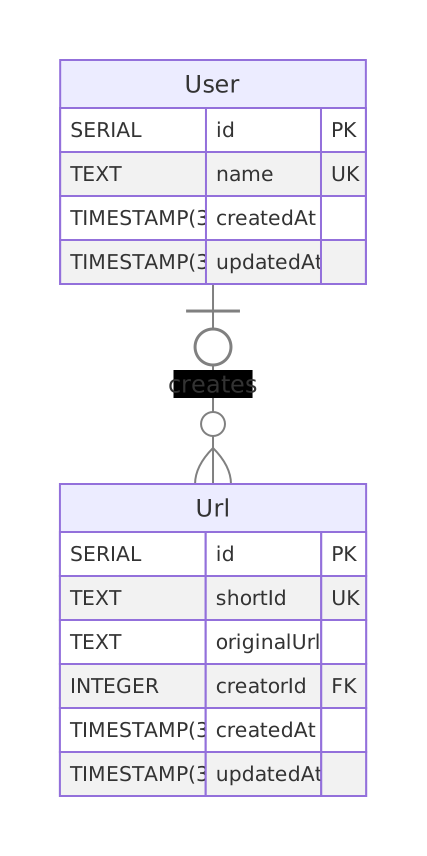
This database has been seeded with 45,000 users with 60 shortened URLs each, totaling around 2,745,000 records (plus a couple more manually added to test the availability during migration) across the 2 tables. All of this comes out to ~512 MBs. This essentially replicates a small SaaS business's database.
Credibility
This guide walks through migrating a 2.7M record database with foreign keys, auto-incrementing IDs, and unique constraints. These parts tend to be the most problematic during migrations. The same SQL and methods scale regardless of whether you have 2 tables or 200.
For production examples: OpenSecret used PlanetScale's migration scripts based on their migration guide for their migration. You can read their blog post about it. This guide follows the same documentation, with the scripts available as automation options.
You can find many more case studies done by PlanetScale, including how those companies migrated.
The migration
I tried to summarize what needs to be done on each step (lifting from the documentation), plus my personal experiences. So think of this blog as an extension to the docs written by PlanetScale, with my personal experiences included.
We do not manually transfer data; we use Postgres' logical replication feature available in versions 10 and above. So if choosing Postgres hasn't paid off yet, it surely will now!
But for real: In my opinion, a migration this way takes very little effort; it's literally the most straightforward thing ever. You can easily do it with no previous migration experience. Getting the 2 DBs set up and getting the database credentials took more effort than the migration itself!
But how fast?
The replication is the longest process here. The example workload above migrated in around 3 minutes at worst.
Pre-flight checklist
Before the migration, please make sure that:
- The
psqlCLI's version (the one installed on your machine) is above the PostgreSQL version of the database you're migrating. It is good practice to always download the latest version. The CLI is backwards compatible (check withpsql --version) - Your Postgres database version is 10 or above (logical replication required)
- All of your Postgres extensions you depend on are supported by PlanetScale (check their extensions documentation). Make sure to enable these before starting the migration to be extra safe!
- You have the necessary permissions for the 2 databases to perform the steps:
- PlanetScale: dashboard access with
Database AdministratororOrganization Administratorrole to create the new database, change its settings, and connect to it - Neon: dashboard access with
Collaboratorrole or above to change its settings, and connect to it
- PlanetScale: dashboard access with
Preparing the PlanetScale database
Now buckle up a little! This'll get a little involved. I'll explain everything from choosing the right cluster size and configuration to preparing the instance for migration.
Choosing database config
Log in to the PlanetScale dashboard and click "Create a new database".
However, before you hurry onto the next steps, here are some things to consider:
- Region: You typically want to use the same region that you deploy your other application infrastructure to.
- Database engine: This guide assumes you are migrating from Neon, so make sure to choose Postgres.
- Storage options:
- PlanetScale Metal: For applications needing high-performance and low-latency I/O. You'll need to choose your storage size during creation (now). (Don't worry, you can resize it later!)
- Elastic Block Storage / Google Presistent Disk: Network attached storage. For applications that need more flexible storage options or smaller compute instances.
If you choose PlanetScale Metal….
You must choose a disk size when first creating your database. You should launch your cluster with a disk size at least 50% larger than the storage used by your current source database.
Example: if you need to import a 330 GB database onto a PlanetScale M-160, there are three storage sizes available: 118 GB, 468 GB, and 1.25GB. You should use the 1.25TB option during the migration.
Tip: not all sizes are available on both architectures; the storage size values in the cluster type cards are dropdowns!
After importing and cleaning up table bloat, you may be able to downsize to the 468 GB option (as per the example). Don't worry! Resizing is a no-downtime operation. More on that in the PlanetScale Cluster configuration docs.
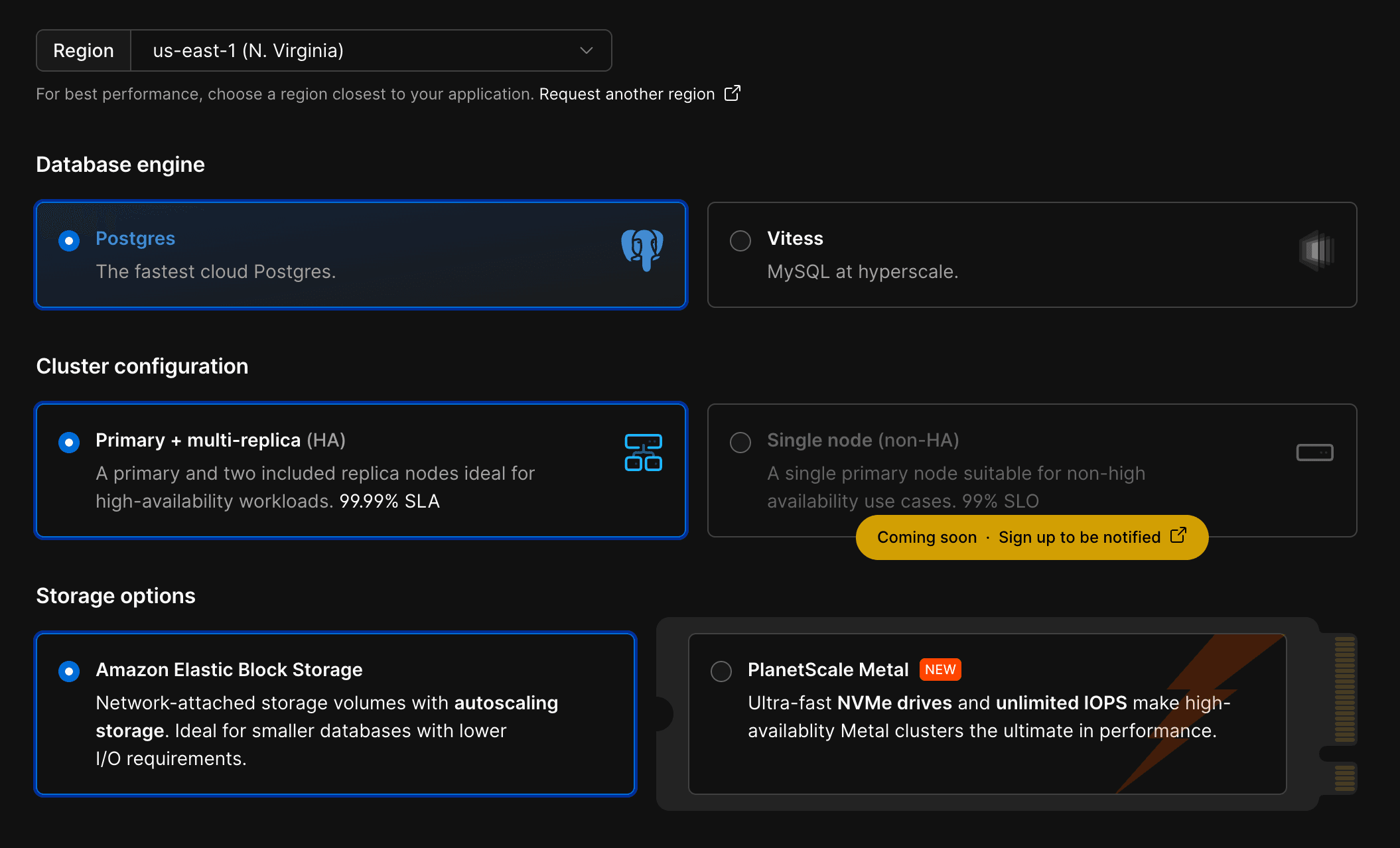
Once you're ready, go ahead and create your database and watch PlanetScale do its magic!
Getting database credentials
Now, on the dashboard of your new database, click "Connect" in the top-right.
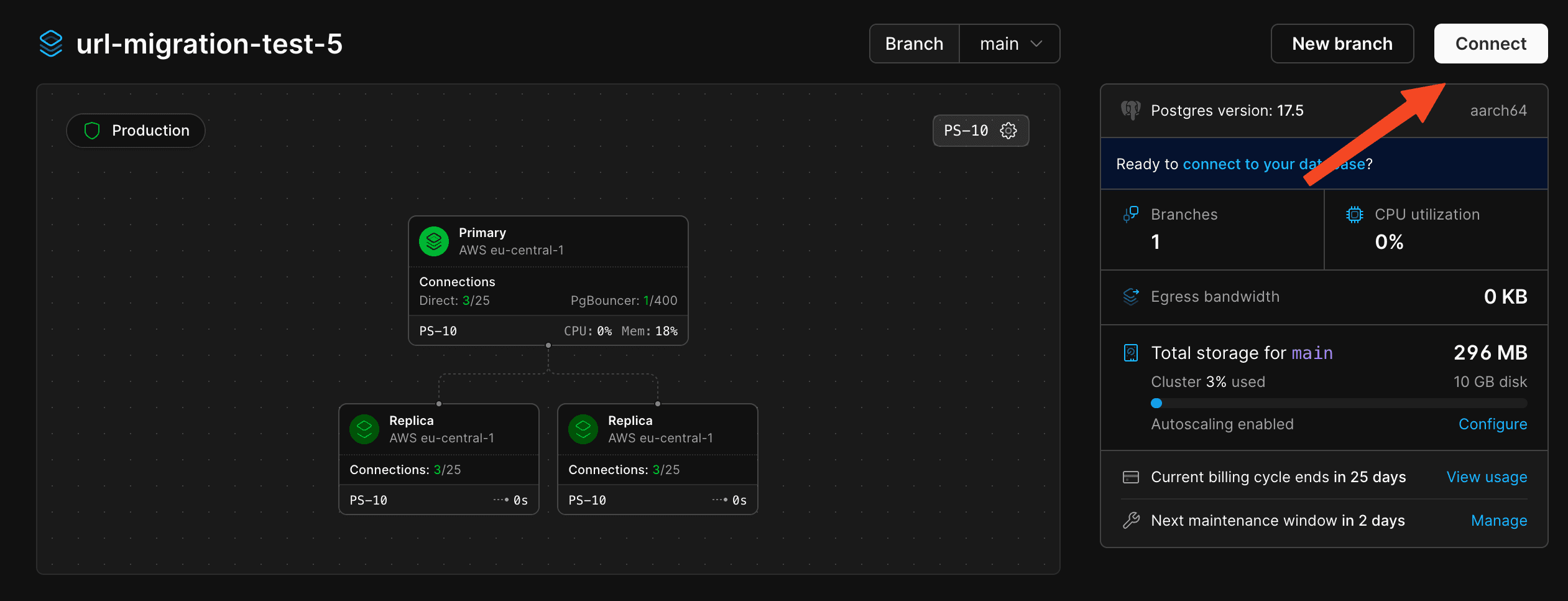
This will launch the role creation wizard. We'll now create our role, which we'll use for our migration. It is considered best practice not to use one role with high-level permissions for everything.
pg_read_all_data and pg_write_all_data should be ticked by default. You'll need to enable pg_create_subscription and postgres in addition to those.
I named my "migration" to be self-explanatory.
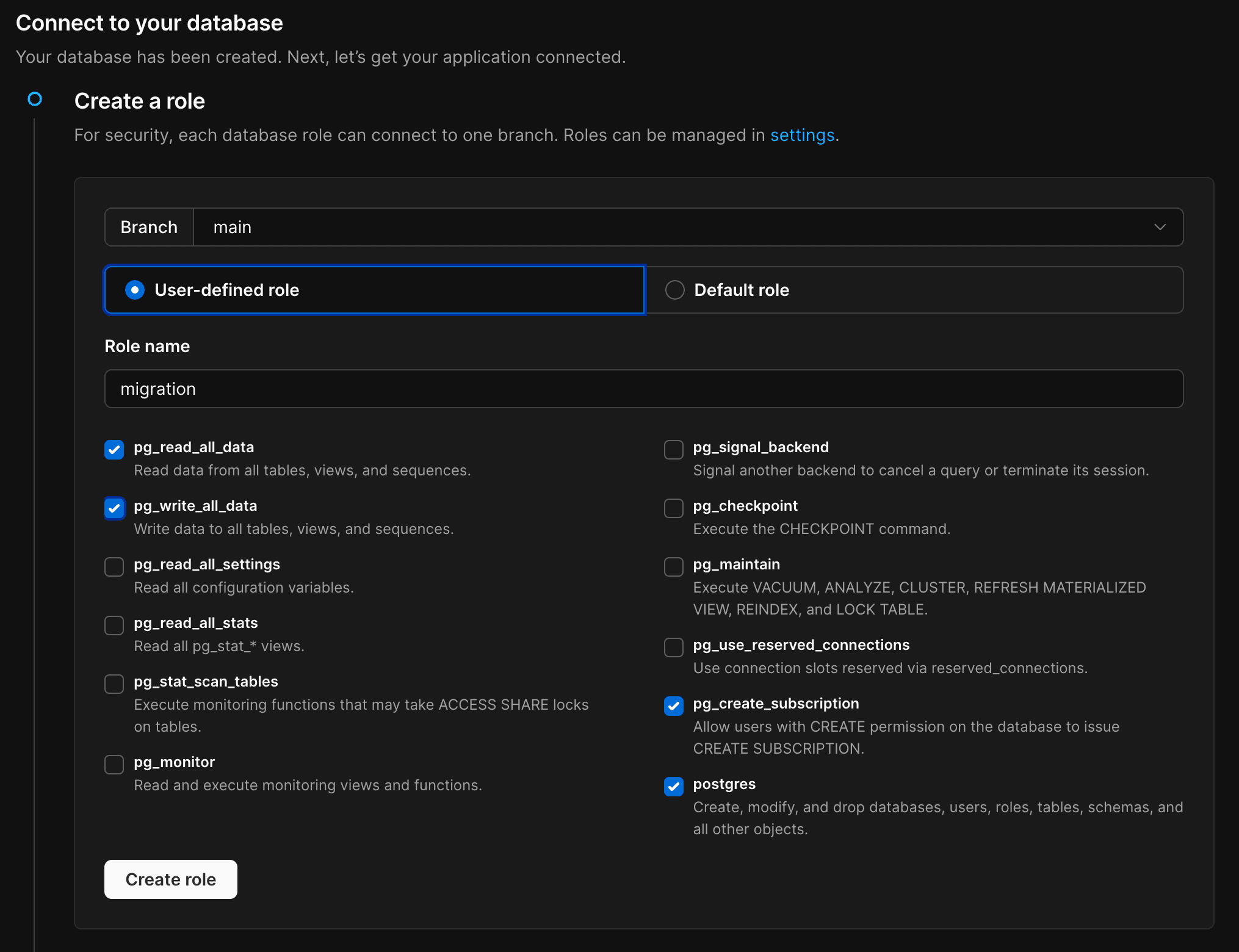
Once done, click create, and copy the credentials you now see into a .env file on your machine, as these environment variables will be referenced by the comments later on:
PLANETSCALE_USERNAME=pscale_api_XXXXXXXXXX.XXXXXXXXXX
PLANETSCALE_PASSWORD=pscale_pw_XXXXXXXXXXXXXXXXXXXXXXX
PLANETSCALE_HOST=XXXX.pg.psdb.cloud
PLANETSCALE_DBNAME=postgres # leave as-is
Configure minimum disk size (for network attached storage instances)
Skip this step if you're importing into PlanetScale Metal.
If you selected a network-attached storage type as your storage option at the start, you'll still have to configure the "Minimum disk size" option, as even though it auto-scales, PlanetScale's cloud providers (AWS & GCP) have limitations on how frequently the storage can be resized.
If you don't ensure your disk is large enough for the import in advance, it will not be able to resize fast enough for a large data import.
Go to the "Cluster configuration" page, then the "Storage" tab.
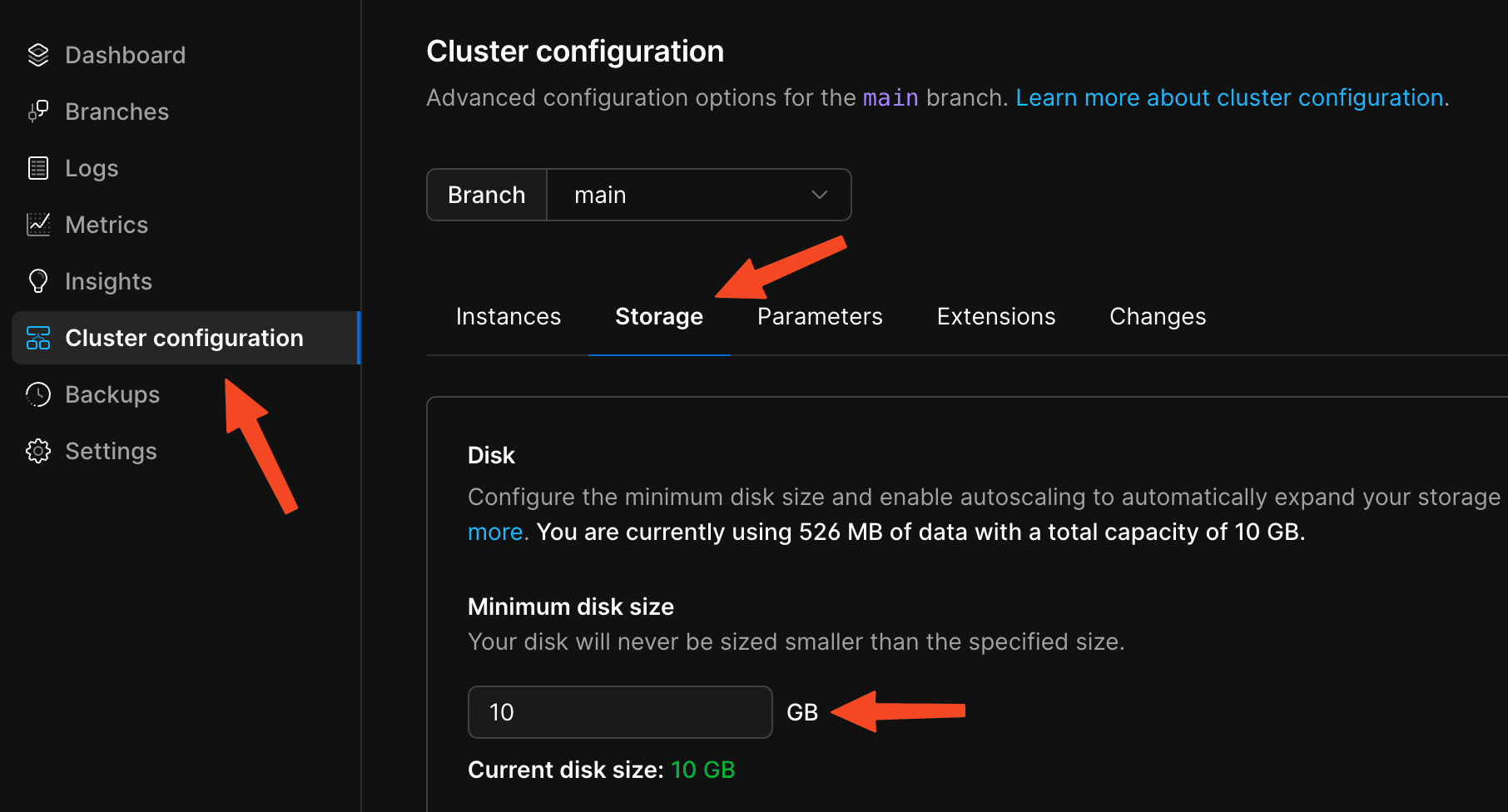
Set this value to 150% of the size of the database you're going to migrate.
Example
If the database you are importing is 330 GB, you should set your minimum disk size to 500 GB.
I left this value at 10 GB, since I'm only migrating 512 MBs.
Make sure to queue these changes so we can apply them after the next step!
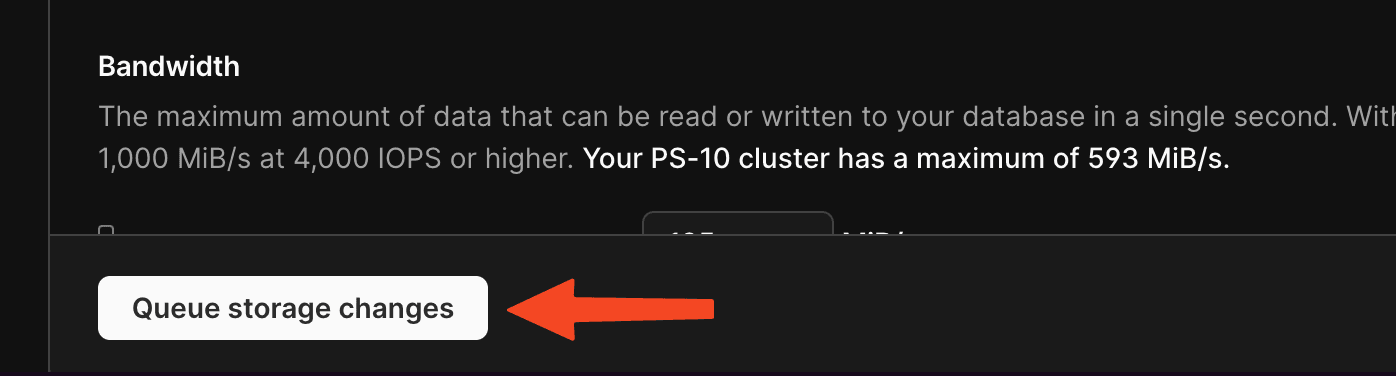
Recommended settings for migration
We'll now change some settings, which should make the migration faster and even more reliable.
To configure this, switch to the "Parameters" tab on the same page.
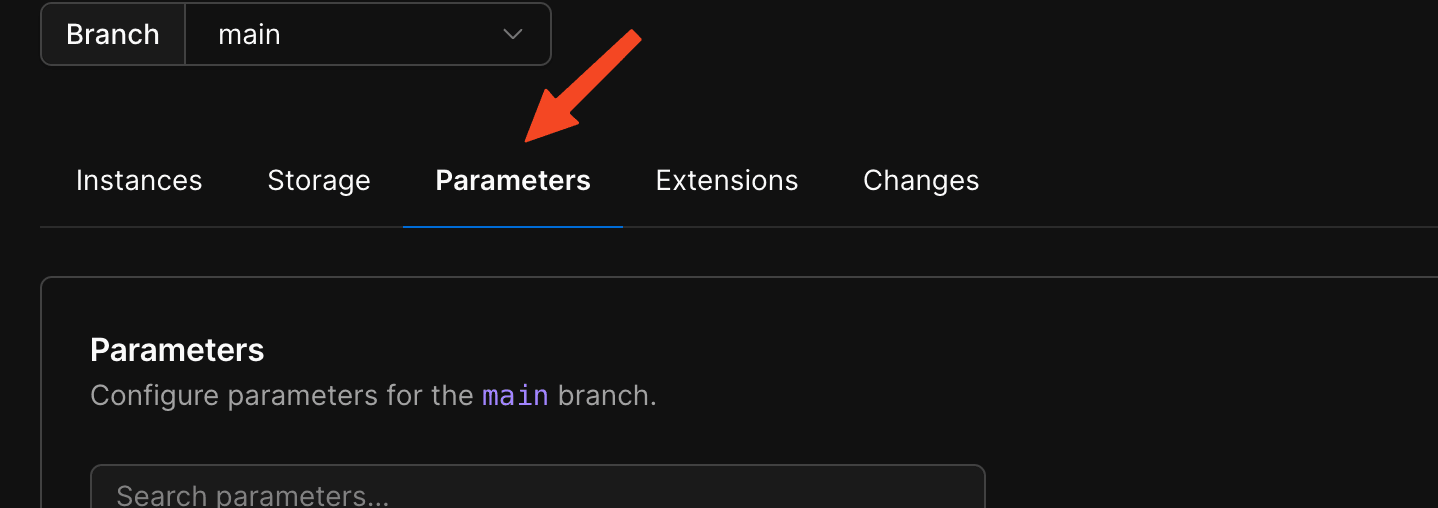
Find the max_worker_processes parameter and increase it from 4 to 10. You can go higher, if you'd like, but you shouldn't really have to go above 20 though.
I increased it to 10 since my migration is rather small, and that's what the docs recommend as well.
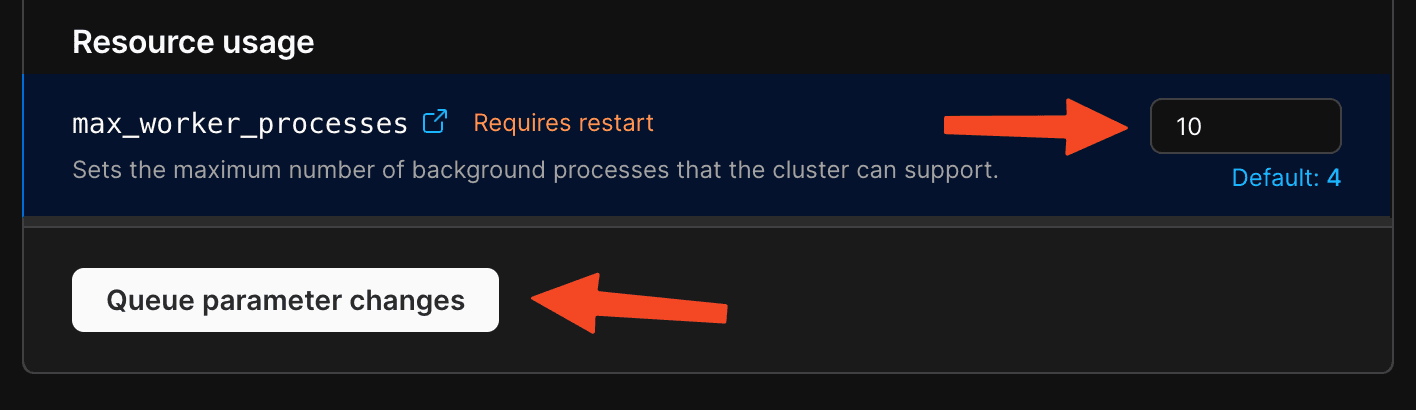
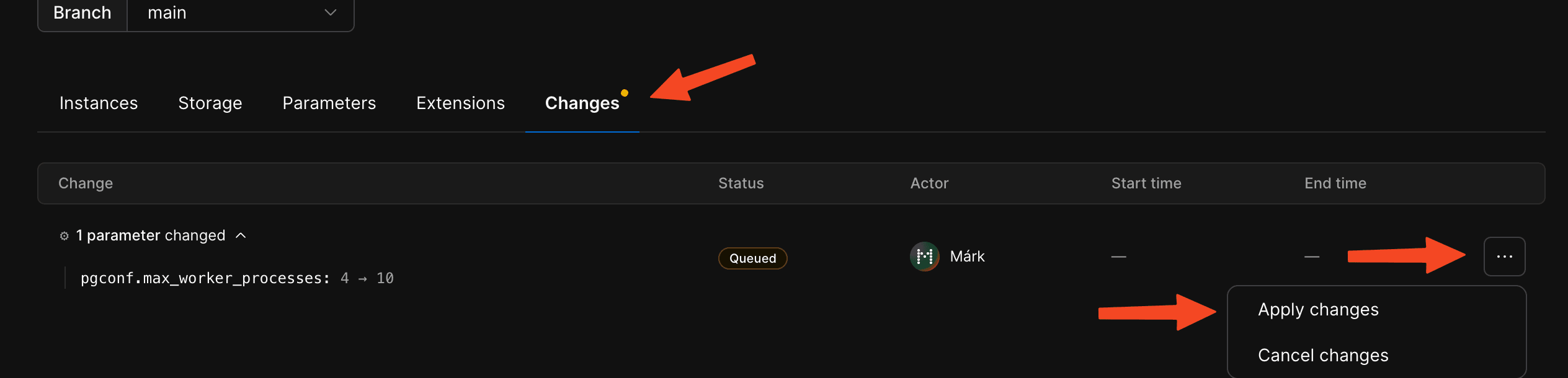
Once ready, queue these changes too. Then head to the "Changes" tab, where you'll find your … 🥁 drumroll please 🥁 … your changes!
Go ahead and apply your changes by hitting the "Apply changes" button in the dropdown and confirming in the pop-up.
Preparing the Neon database
The configuration on the Neon side was thankfully much easier, literally just turn on logical replication, get the credentials, and that's it.
Enabling logical replication support
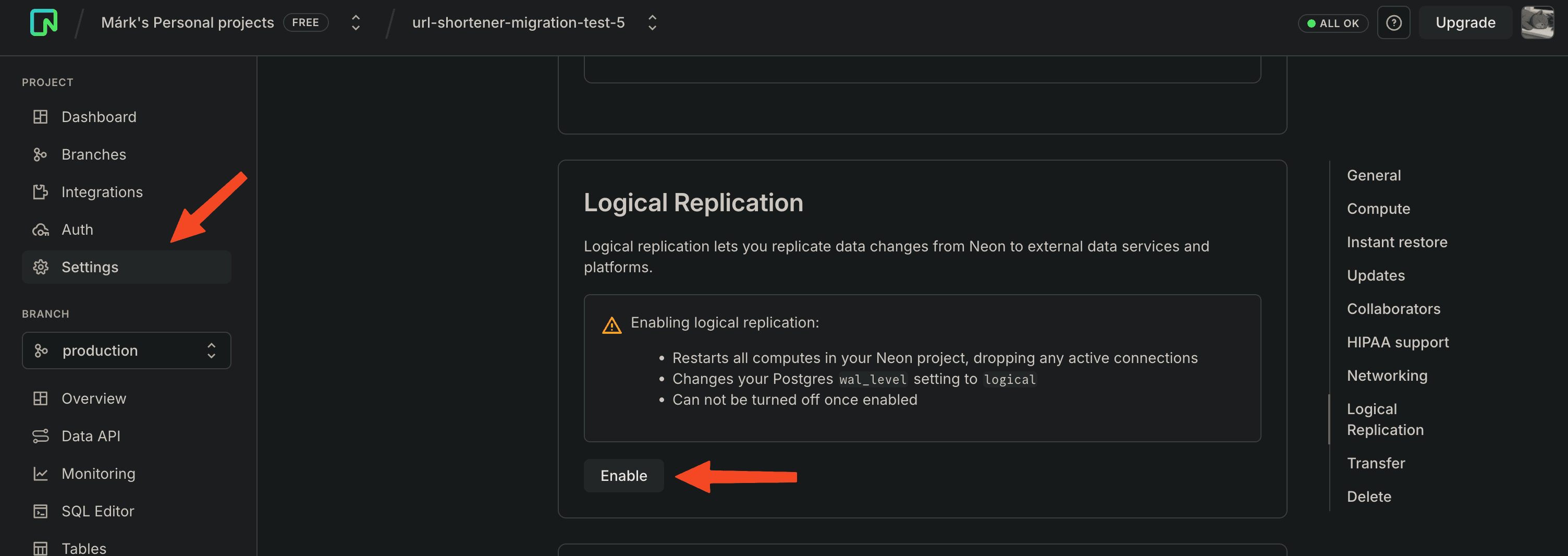
Go to your Neon project's "Settings" page, then find the "Logical Replication" section, then hit "Enable".
This'll restart your DB instances, meaning it'll drop all connections, so bear that in mind. Otherwise, this should be basically instantaneous.
Getting database credentials
Hitting "Connect" in the top-right corner of your project's home page should give you the credentials for your database. Using the neondb_owner role is fine here. (You can make a separate migration role if you want, though.)
Make sure to disable "Connection pooling", as this bypasses PgBouncer, which is recommended for using things like pg_dump; also, leaving it on could potentially interfere with the PlanetScale subscription's operations.
Select "Parameters only" in the dropdown above the credentials so you get them neatly organized. You also want to click the show password button so you can copy them right from here.
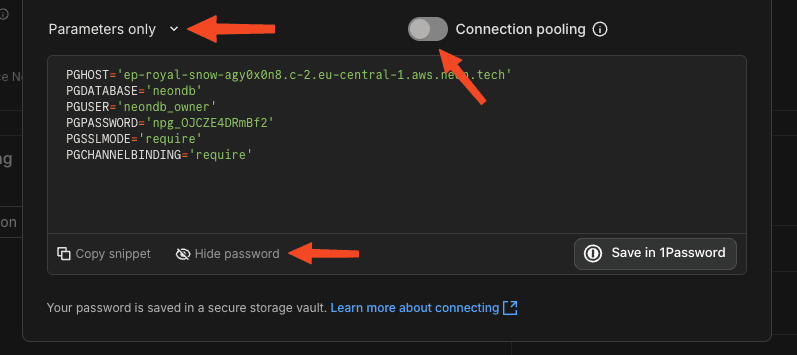
Copy these credentials into this format and save them in the same env file:
PLANETSCALE_DBNAME=postgres # leave as-is
# ...

NEON_USERNAME=neondb_owner
NEON_PASSWORD=npg_XXXX
NEON_HOST=XXX.XXXXXX.aws.neon.tech
NEON_DBNAME=neondb
Copying the schema to PlanetScale
Tip
If you have a UNIX-like terminal, use source .env to load the variables into your current shell so the commands can use them.
Before we start the replication, we need to manually copy the schema from Neon to PlanetScale. We're going to do this by dumping and loading the schema.
To dump the schema from neon to the current folder, run:
PGPASSWORD=$NEON_PASSWORD \
pg_dump \
	-h $NEON_HOST \
	-U $NEON_USERNAME \
	-p 5432 \
	-d $NEON_DBNAME \
	--schema-only \
	--no-owner \
	--no-privileges \
	-f schema.sql
Then we connect to the DB and upload the same schema in one step:
PGPASSWORD=$PLANETSCALE_PASSWORD \
psql \
	-h $PLANETSCALE_HOST \
	-U $PLANETSCALE_USERNAME \
	-p 5432 \
	-d $PLANETSCALE_DBNAME \
	-f schema.sql
The PlanetScale docs say that you may see errors in the format of psql:schema.sql:LINE: ERROR: DESCRIPTION. I haven't encountered this myself in the couple of simulated migrations I've done, but if you find anything concerning, contact PlanetScale before continuing.
Setting up logical replication (the sauce)
Here comes the interesting part! Connect to your Neon database via the following command:
PGPASSWORD=$NEON_PASSWORD \
psql \
  -h $NEON_HOST \
  -U $NEON_USERNAME \
  -p 5432 \
  $NEON_DBNAME
Run the following SQL statement to create a publication on Neon:
CREATE PUBLICATION replicate_to_planetscale FOR ALL TABLES;This should output something like CREATE PUBLICATION if run correctly.
Now we need to tell PlanetScale to connect and subscribe to the publication.
Run this to connect to your database and automatically run the query to create the subscription which points to your Neon db:
PGPASSWORD=$PLANETSCALE_PASSWORD \
psql \
  -h $PLANETSCALE_HOST \
  -U $PLANETSCALE_USERNAME \
  -p 5432 \
  $PLANETSCALE_DBNAME \
  -c "
CREATE SUBSCRIPTION replicate_from_neon
CONNECTION 'host=$NEON_HOST dbname=$NEON_DBNAME user=$NEON_USERNAME password=$NEON_PASSWORD sslmode=require channel_binding=require'
PUBLICATION replicate_to_planetscale WITH (copy_data = true);"
This should log:
NOTICE: created replication slot "replicate_from_neon" on publisher
CREATE SUBSCRIPTION
Congrats! Your PlanetScale database is now catching up with your Neon database. As I wrote above, this is near instant for small databases. But even if it's not, we can work on migrating sequences while it's copying/replicating.
Handling sequences (if you even use those)
Logical replication copies your data, but it doesn't handle sequences or other database settings.
If you do not migrate the sequences, PlanetScale will start counting from 1 again, meaning that you'll probably get errors like ERROR: duplicate key value violates unique constraint "XXXX".
You can check if your database uses indexes (like for sequences in IDs, etc.) via an SQL query. But first, connect to your Neon DB:
PGPASSWORD=$NEON_PASSWORD \
psql \
  -h $NEON_HOST \
  -U $NEON_USERNAME \
  -p 5432 \
  $NEON_DBNAME
Then run this SQL query:
SELECT schemaname, sequencename, last_value + increment_by AS next_value
FROM pg_sequences;
In my case, this returns the following:
 schemaname | sequencename | next_value
------------+--------------+------------
 public     | User_id_seq  |      45001
 public     | Url_id_seq   |    2700001
(2 rows)
You can see that I got sequences for the 2 ID fields in my 2 tables, which is expected since both are defined as SERIAL.
Skip condition
If you get an empty table, you can safely skip this section (to Moving reads & writes to PlanetScale) since you do not have anything that uses sequences.
You might think copying the sequences is enough; however, you'll most likely exceed the migrated sequences by the time you cut over. For this reason, you have to increment the sequences by an amount you're sure you won't exceed before moving the reads and writes to PlanetScale.
If you do not know how to measure, or don't want to guess this yourself
It might be beneficial to use the ff-seq.sh script provided by PlanetScale, which, when provided with your Neon database credentials (--primary), PlanetScale credentials (--secondary), and a --skip property in seconds, will sample your database and fast-forward the sequences on your PlanetScale database enough to only catch up by the amount of seconds provided.
So in practice, you could provide a --skip value of 18,000, which will give you time for 5 hours to complete the migration and cut-over.
If you know your constraints, the solution is straightforward. Assume 100 records inserted per second and a 5-hour migration window. You can calculate the total records: . Then fast-forward your sequences by that amount.
Doing these manual calculations essentially achieves what the script does.
Run the following query on Neon to generate statements to move the sequences ahead a bit: Change the amount added in proportion to how frequently records are inserted into your tables.
SELECT 'SELECT setval(''' || schemaname || '."' || sequencename || '"''::regclass, '
	|| (last_value + 10000) || ');' AS query
FROM pg_sequences;
PlanetScale docs inaccuracy
As of writing, the PlanetScale docs use incorrect quoting that treats the whole public.sequencename as a single identifier, causing Postgres to interpret it as a column reference instead of a sequence name.
The corrected version above properly quotes only the sequence name and uses ::regclass to resolve it correctly. (though the latter is not technically required)
If you're interested, this is what running the generated statements outputted by the bad generator looks like:
> SELECT setval("public.User_id_seq", 55000);
ERROR:  column "public.User_id_seq" does not exist
LINE 1: SELECT setval("public.User_id_seq", 55000);
This will output something like:
                          query
----------------------------------------------------------
 SELECT setval('public."User_id_seq"'::regclass, 55000);
 SELECT setval('public."Url_id_seq"'::regclass, 2710000);
(2 rows)
Now connect to your PlanetScale database:
PGPASSWORD=$PLANETSCALE_PASSWORD \
psql \
	-h $PLANETSCALE_HOST \
	-U $PLANETSCALE_USERNAME \
	-p 5432 \
	$PLANETSCALE_DBNAME
Run the queries outputted by the generator statement from the Neon database:
SELECT setval('public."User_id_seq"'::regclass, 55000); SELECT setval('public."Url_id_seq"'::regclass, 2710000);These should result in:
 setval
--------
  55000
(1 row)
setval
---------
2710000
(1 row)Now for verification, check the query we ran on Neon, but now on PlanetScale, it should report the newly set values:
 schemaname | sequencename | next_value
------------+--------------+------------
 public     | User_id_seq  |      55000
 public     | Url_id_seq   |    2710000
(2 rows)
We have successfully migrated all of our sequences now! That's it. We can now start thinking about moving reads and writes to PlanetScale, aka cutting over.
Moving reads & writes to PlanetScale
Final checks
Before we cut over, we must check that the replication between Neon and PlanetScale is fully caught up.
There are 2 methods we can use to verify this: querying and comparing the Long Sequence Numbers (LSNs), or doing the same with the table row counts.
Here's a template on how you would do that:
SELECT table_name, row_count FROM (
  SELECT 'table_name_1' as table_name, COUNT(*) as row_count FROM table_name_1 UNION ALL
  SELECT 'table_name_2', COUNT(*) FROM table_name_2 UNION ALL
  ...
  SELECT 'table_name_N', COUNT(*) FROM table_name_N
) t ORDER BY table_name;
Replace the occurrences of table_name_* with the table names in your schema, and run it on both the Neon and PlanetScale databases.
This is what that query looks like on my schema:
SELECT table_name, row_count FROM (
  SELECT 'User' as table_name, COUNT(*) as row_count FROM "User" UNION ALL
  SELECT 'Url', COUNT(*) FROM "Url"
) t ORDER BY table_name;
For me, this results in:
Neon:
 table_name | row_count
------------+-----------
 Url        |   2700000
 User       |     45000
(2 rows)
PlanetScale:
 table_name | row_count
------------+-----------
 Url        |   2700000
 User       |     45000
(2 rows)
If you see the row counts matching between the 2 databases, this check passes! If it's off by a significant amount, wait until it catches up.
The other way is with Long Sequence Numbers, or LSNs. LSNs are positions in PostgreSQL's Write-Ahead Log (WAL) that track the exact location of database changes. When replication is fully caught up, the LSN on your source database (Neon) should match the received_lsn and latest_end_lsn values on your replica (PlanetScale). This is more precise than counting rows because it verifies that every single change has been replicated, not just that the final counts match.
Run the following on your Neon database:
SELECT pg_current_wal_lsn();This should return something like:
 pg_current_wal_lsn
--------------------
 0/4ED70278
(1 row)
Now, run this on PlanetScale:
SELECT received_lsn, latest_end_lsn
	FROM pg_stat_subscription
	WHERE subname = 'replicate_from_neon';
(This is different because we need to check the subscription status, not the wal lsn of the db itself.)
This returned the following for me:
 received_lsn | latest_end_lsn
--------------+----------------
 0/4ED70278   | 0/4ED70278
(1 row)
You should see all of these values match up. As simple as that! If you don't, do the same as with the row count checks: wait. (It's totally possible for the row counts to match, but for the LSNs to not.)
The move
You are now ready to move over!
You should now change the database credentials in your app to PlanetScale's. Create a new role on PlanetScale with the necessary permissions required for your app to operate, and use said permissions in the next deployment of your app.
The retirement
It's probably not the best idea to shut down the Neon database yet. We need to make sure that no other connections except PlanetScale's subscription exist, so you know that no one is connected to the old deployment of your app at this point.
Go to your Neon project, then "Monitoring" in the sidebar, then find the "Connections count" graph. Check the "Total" value, and verify it's 1.
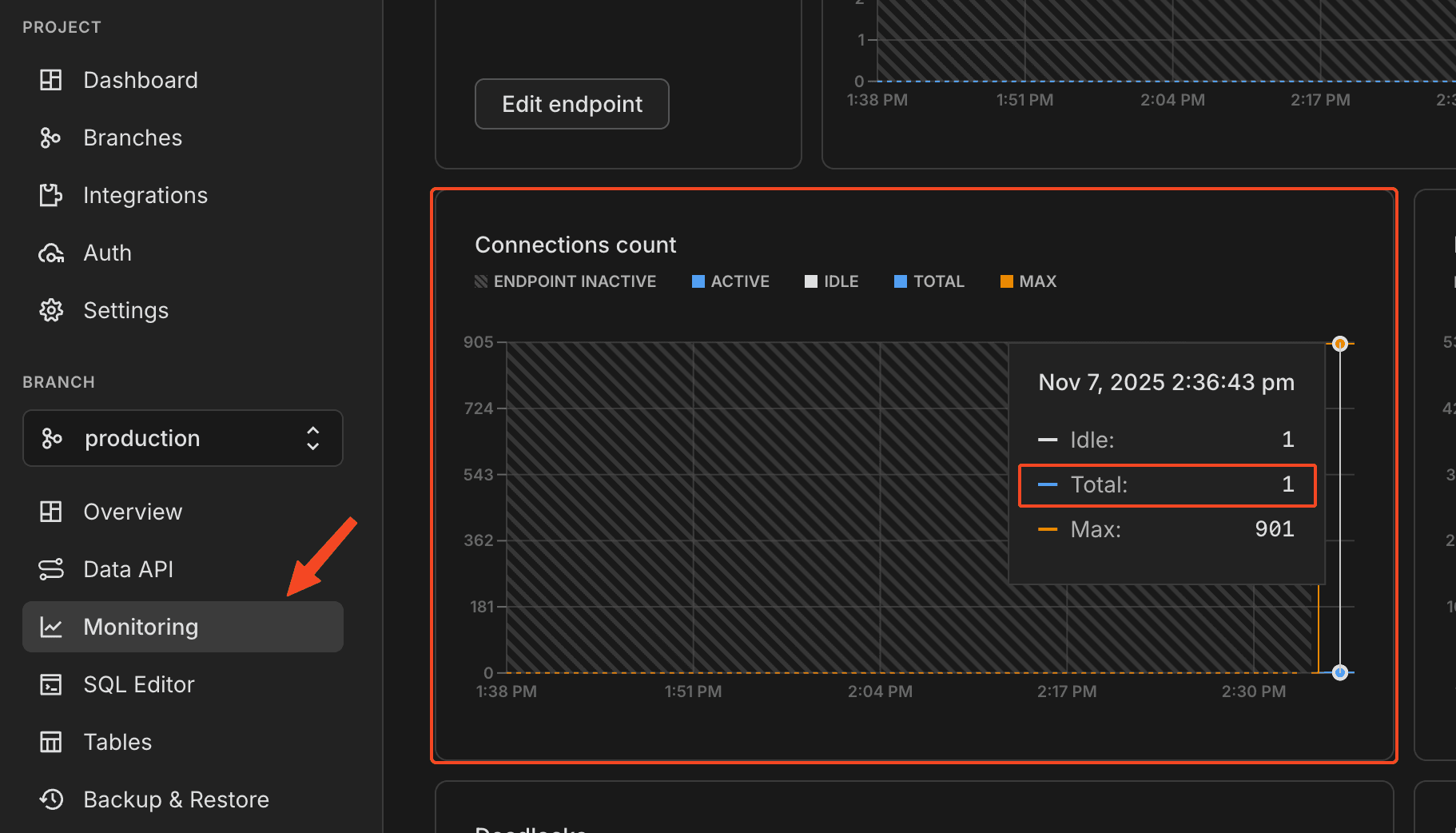
Once you've verified that the other connections have been closed (excl. PlanetScale), you can leave Neon alone, since it auto-scales to zero.
Tip
The PlanetScale docs recommend you keep the old data (including the db) for a couple of days at the very least in case anything went wrong. This shouldn't be a problem since you won't incur any costs due to Neon's "scale to zero" feature.
Cleaning up
Disabling replication
Continue condition
Only do this if you've verified that the old database (Neon) is no longer used!
You can disable the replication by first clearing the subscription on PlanetScale, then the publication on Neon.
Run this on PlanetScale to clear the subscription:
DROP SUBSCRIPTION replicate_from_neon;If that ran successfully, run this on Neon to clear the publication:
DROP PUBLICATION replicate_to_planetscale;That's it! The 2 databases are now decoupled.
Getting rid of table & index bloat
Debloating is out of scope for this guide, but this is very well documented by PlanetScale. You're probably going to want to use something like pg_squeeze. For which documentation is available here.
Downsizing
You can downsize your database after the migration as described here.
How is this blog?